Blur faces in a photo
Free forever. No sign-up, no watermark, no limits — ads keep it that way.
Choose a photo and your browser finds the faces in it and covers them, without the picture ever leaving your device.
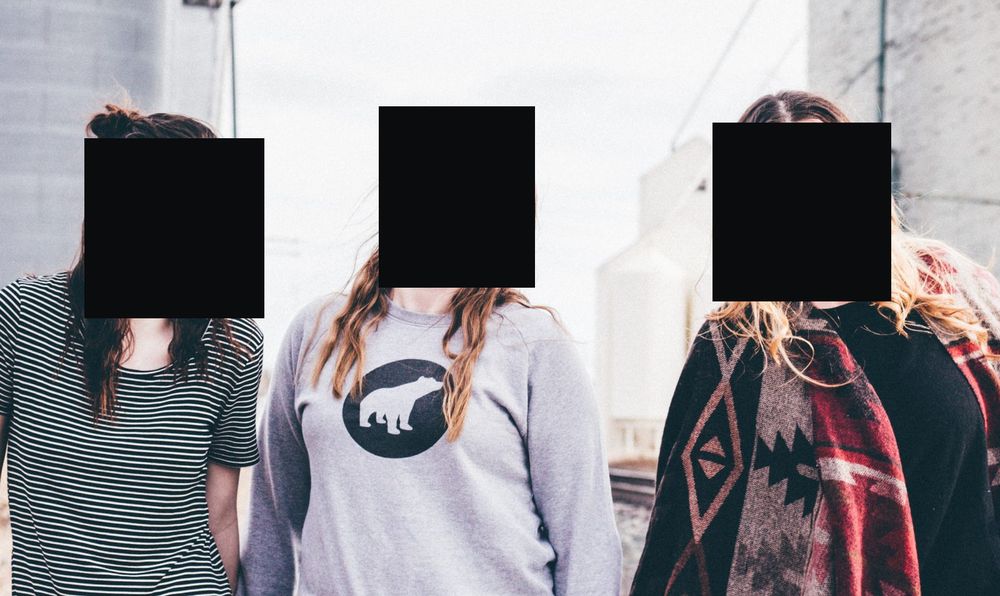
How the detection works
When you pick a file, the page downloads a face detection model and runs it on your own machine. The model is BlazeFace, published by Google as part of MediaPipe under the Apache 2.0 licence. It is a small file, and it is fetched only at the moment you choose a photo, never when the page loads — someone who comes here to read downloads nothing.
Note which direction that traffic goes. Code comes down to you. Nothing goes back up. There is no upload endpoint on this site because no server here touches images at all.
The detector hands back a rectangle for each face it is confident about, and each rectangle is padded outwards a little, because a box drawn tight to the eyes and mouth usually leaves a jaw or a hairline showing. From there the boxes are yours: move them, resize them, delete them, add ones the model did not find.
Where it works well
Faces that are roughly front-on, reasonably large in the frame, and lit well enough to see. A group posing for a photograph, a portrait, people within a few metres of the camera. A useful rule of thumb: if you can pick out someone's eyes when the photo is at full size, the model probably can as well.
Where it will miss
This is the part worth reading. The detector is looking for a particular arrangement of features, and these are the situations where it does not find one:
- Faces in profile. A side-on view is the most common miss by a wide margin.
- Faces far from the camera — someone at the back of a crowd, or across a car park.
- Faces near the edge of a wide-angle or ultra-wide shot, where the lens stretches them.
- Faces partly covered by a mask, a scarf, a raised hand or a phone held up to shoot.
- Faces in heavy shadow, or lit from behind hard enough to read as a silhouette.
- Faces in a reflection: a window, a wing mirror, a shop front, a puddle.
- Faces inside a photograph within the photograph — a framed picture on the wall behind your subject, a poster, a screen, an ID card left on a desk.
So check the picture, not the count. Open the result at full size and go through the people in it one at a time rather than trusting a number. Anything the model skipped, you cover by dragging a box over it — the same action you would use to blur a license plate or to black out text on a document.
Neither of those is detected automatically anywhere on this site, and that is deliberate. There is no reliable, permissively licensed model for plates or text that runs in a browser. Shipping one that finds two plates in three would be worse than asking you to draw a box, because you would stop checking. Drawing a box takes a couple of seconds and you know exactly what it covered.
A covered face is not an anonymous person
This is the limitation that matters most, and it has nothing to do with the model. People are recognised by far more than a face. A school uniform, a name badge, a distinctive jacket, a tattoo, a pushchair, the car on the driveway, the number on the front door, the caption you are about to type underneath. Anyone who already knows the person needs very little of this.
Before you post, read the whole frame the way a stranger would, then read it again the way a neighbour would. The fullest treatment of that idea is in the guide to posting children's photos on social media, which works through what stays identifying after the faces are gone.
The file carries clues too. Most phone photos record where and when they were taken. Exporting from this tool re-encodes the image and drops all of it; if the pixels are fine and only the metadata is the problem, the metadata stripper handles that on its own.
Group photos, where only some faces need covering
A common case: a birthday photo where your own family is fine to publish and other people's children are not. Let the detector mark every face it finds, then delete the boxes over the people you are happy to show. If you delete one by mistake, undo puts it back.
It also works the other way. If one person in a crowd of thirty needs covering, clearing the detected boxes and drawing the single one you actually want is quicker than pruning twenty-nine.
Which mode to pick for a face
- Solid bar
- The pixels are replaced with a flat rectangle. Nothing of the original survives in the exported file, so it cannot be undone. This is the default.
- Pixelate
- The area is averaged into blocks. Detail is reduced rather than removed, and a light pixelation can be partly recovered.
- Blur
- Three stacked box blur passes. Same trade-off as pixelation: the original is averaged, not deleted.
That trade-off is the whole reason the solid bar is the default. How far blur and pixelation can actually be undone is the subject of a separate piece on whether an AI can unblur a face. The softer modes still have a place — a black rectangle over a child in a family photo changes what the photograph is — but choose them knowing that they reduce information rather than destroy it, and use them where a partial recovery would not hurt anyone.
What goes in and what comes out
Accepted: JPG, PNG, WebP, GIF, BMP, AVIF, SVG, HEIC and HEIF, TIFF. Camera RAW files — CR2, CR3, NEF, ARW, DNG, ORF, RAF — are refused with an explanation rather than half-decoded, because browsers cannot read them dependably. Export is PNG at the resolution you brought in, or JPG. No watermark, no sign-up, no cap on how many photos you run through. Still images only. On a phone the working preview is capped at 3,000 pixels on the long edge so that memory holds, but the file you download is always composed against the full-resolution original.
Questions about blurring faces
Is my photo uploaded anywhere?
No. There is no upload and no server to upload to. The only thing that travels over the network is the detection model coming down to you, and that request is made after you have picked a file. Your image is decoded, edited and saved by the browser tab in front of you.
The detector found fewer faces than there are in the photo. Is it broken?
Almost certainly not. Profile views, distant faces, faces in shadow and faces in reflections are ordinary misses for a model of this kind. Draw a box over whatever it skipped. A hand-drawn box covers in exactly the same way a detected one does, and the exported file cannot tell them apart.
Can a blurred or pixelated face be brought back?
Partly, sometimes. Blur and pixelation both average the original pixels rather than discard them, so some information survives in the exported file and can be exploited. A solid bar cannot be reversed, because the pixels underneath it are not in the file at all. When the consequence of being wrong is serious, use the bar.
Does covering a face also remove the location stored in the photo?
Yes, as a side effect. The export is re-encoded through the canvas, and the new file carries no EXIF block: no GPS coordinates, no timestamp, no camera serial number. If the pixels are fine and only the metadata is the problem, the metadata stripper does that job on its own.
Can I blur faces in a video here?
No. This is a still image tool. A video is thousands of frames and a face has to be tracked between them, which is a different problem and a different kind of software. There is a short piece on the options for blurring faces in dashcam footage if that is what you are dealing with.
The four steps
Each step is its own page, so you can bookmark one, link someone to it, or read what it does before you start. Your photo stays in the tab as you move between them, and it is never sent anywhere.
- Choose a photo — this page. Drop a file in or pick one; it is read by your browser.
- Finding the faces — the detector downloads once, then runs on your device. Finding nothing is a normal outcome, and that page explains why.
- Adjust the boxes — delete what you do not need, drag boxes over anything else, and choose how each region is covered.
- Save the photo — full resolution, no watermark, and a check to run before you publish it.
The other six tools
Same editor underneath, same promise: the file is opened by your browser and never uploaded. Pick whichever matches the thing in front of you.
-
Blur a license plate
Before a car advert goes online. Drag one box over the plate and the characters are replaced rather than smudged.
One box · irreversible
-
Pixelate part of a photo
Starts in pixelate mode, for when the shape of a thing should stay readable but the detail of it should not.
Pixelate · adjustable block size
-
Black out text in an image
An address on an envelope, a name on a form, a booking reference. Solid bars, with nothing left underneath them.
Solid bar · nothing recoverable
-
Blur a screenshot
An email address, a chat name, a bank balance — covered before the grab goes into a thread or a support ticket.
Screens · PNG in, PNG out
-
Redact a PDF
A document rather than a picture. Every page is flattened, which is the only way a black box over PDF text is worth anything.
Up to 120 pages · no text layer left
-
Strip photo metadata
No bars at all. It reads what your file is carrying, GPS coordinates included, and writes you a clean copy of it.
EXIF · GPS · camera serial