How to check what metadata a photo carries before you send it
Published 7 July 2026 · 6 min read
Every photo your phone takes is a picture plus a written record of when and where it was taken, on what, and with which settings. Most of the time that record is useful. Occasionally it is the thing you least want to hand over. Here is how to look at it, on each platform, before the file leaves your hands.
What you are looking for
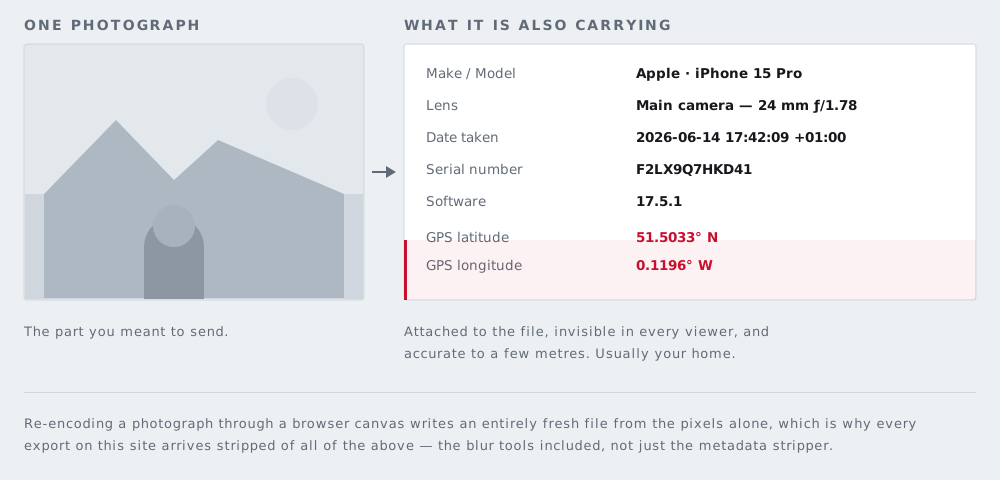
The record is called EXIF, and the fields that matter to most people are a short list: GPS latitude and longitude, the capture date and time including the timezone offset, the camera make and model, and — on some cameras — a body serial number. Editing software often adds its own name too, and some files carry an embedded thumbnail, a small second copy of the image generated when the shot was taken.
The GPS field is the one worth understanding properly. It is not a rough area. Coordinates are stored as degrees, minutes and seconds with fractional precision, which places a photo to within a few metres. That is a building, and often a room.
iPhone
Open the photo in Photos and swipe up, or tap the information button. You will see the date and time, the camera and lens, the exposure settings, and — if location was recorded — a map with the place name. Tapping Adjust next to the location lets you change or remove it for that photo.
When sharing, the more important control is easy to miss. On the share sheet, tap Options at the top. There you can switch Location off, and choose whether to send the photo as-is or in a more compatible format. Switching Location off strips the GPS field from the copy you send, leaving your original untouched.
If you would rather your phone never recorded position in the first place, that is in Settings, under Privacy & Security, then Location Services, then Camera.
Android
The details differ by manufacturer, but in Google Photos, opening an image and swiping up shows a details panel with the date, the device, the file size, and a map when location is present. Many Android builds let you remove location from the share sheet directly; Google Photos offers a "Remove location data" option in its sharing preferences.
To stop it being recorded, open the camera app's own settings and look for a location or geotagging toggle — it lives in the camera app rather than in system settings on most devices.
Windows
Right-click the file, choose Properties, then the Details tab. Scroll and you will see camera information, the date taken, and GPS fields when they exist.
At the bottom of that tab is Remove Properties and Personal Information. It is genuinely useful, with one limitation worth knowing: by default it creates a cleaned copy rather than modifying the original, and it removes the properties Windows knows how to enumerate. It is not a guarantee that every private field in every format has gone. For a photo you are about to publish rather than email to a friend, treat it as a good first pass rather than the final word.
macOS
Open the file in Preview and choose Tools, then Show Inspector. The tabs there cover general file information, EXIF, and GPS when present, and the GPS tab shows a map.
Preview's inspector will show you what is there but does not offer a general strip-everything button. In the Photos app, using File then Export then Export Photo gives you a dialogue with a Location Information checkbox — clearing it writes the exported copy without GPS.
The command line, when you want certainty
ExifTool, by Phil Harvey, is the reference implementation for this and reads far more than any built-in viewer. To see everything in a file:
exiftool photo.jpgTo see just the location fields:
exiftool -gps:all photo.jpgTo write a copy with all metadata removed:
exiftool -all= -o clean.jpg photo.jpgIt is available for Windows, macOS and Linux. If you handle photographs professionally, it is worth the twenty minutes to learn.
The problem with online EXIF checkers
Search for a metadata viewer and you will find dozens of sites offering to tell you what is in your photo. Every one of them asks you to upload the file first.
Consider what that means. You are worried the photo contains your home address. To find out whether it does, you send the photo, and the address, to a server you know nothing about, run by people you cannot name, in a country you have not checked, which may log it, cache it, or keep it. The check itself is the disclosure.
That is the reason the metadata tool on this site reads the file in your browser. It parses the bytes on your own device, shows you what it found, and can write a clean copy back out — with no upload step, because there is no server to upload to. You can confirm that yourself: the method is described on how it works.
The limit that matters most
Stripping metadata changes nothing you can see. This is the single most misunderstood point about it, and it is worth being blunt.
If the photo shows your street sign, your house number, your car's registration, your child's school jumper, or a letter on the kitchen table, removing the GPS coordinates achieves nothing at all. The information is in the picture. A file with no EXIF whatsoever can still identify exactly where you live.
Metadata stripping and redaction are two different jobs, and a photo you are about to publish usually needs both. Cover what is visible first — faces, text and documents, plates — and then strip the file. There is a fuller tour of what a picture gives away in what your phone photos reveal about you.
A quick habit
Before sending a photo to someone you do not know well — a buyer, a landlord, a forum, a listing — take ten seconds: open the details panel, look for a map, and look at the picture itself for anything with your name or address on it. That is most of the value of everything above, and it takes less time than writing the message.